Enable Two-Factor Authentication (2FA)
Follow the steps below to enable Two-Factor Authentication (2FA) for your Docs.Ink account. 2FA adds an extra layer of security by requiring a second form of verification in addition to your password.
Log into Docs.ink
Open your browser and go to login page .
Enter your email address and current password. → Click Login.
Navigate to Profile Settings
Go to Profile → Settings
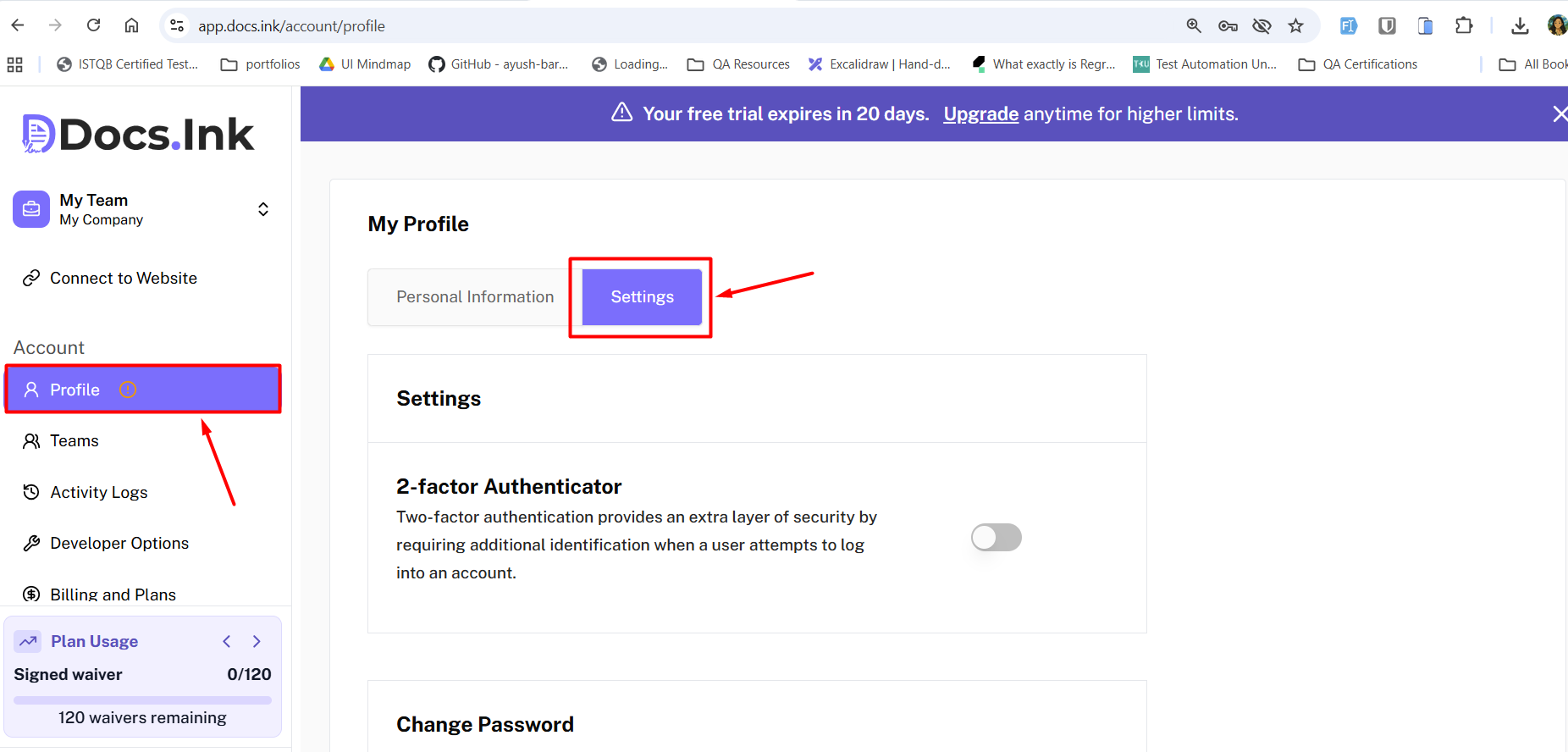
Enable the 2-Factor Authentication
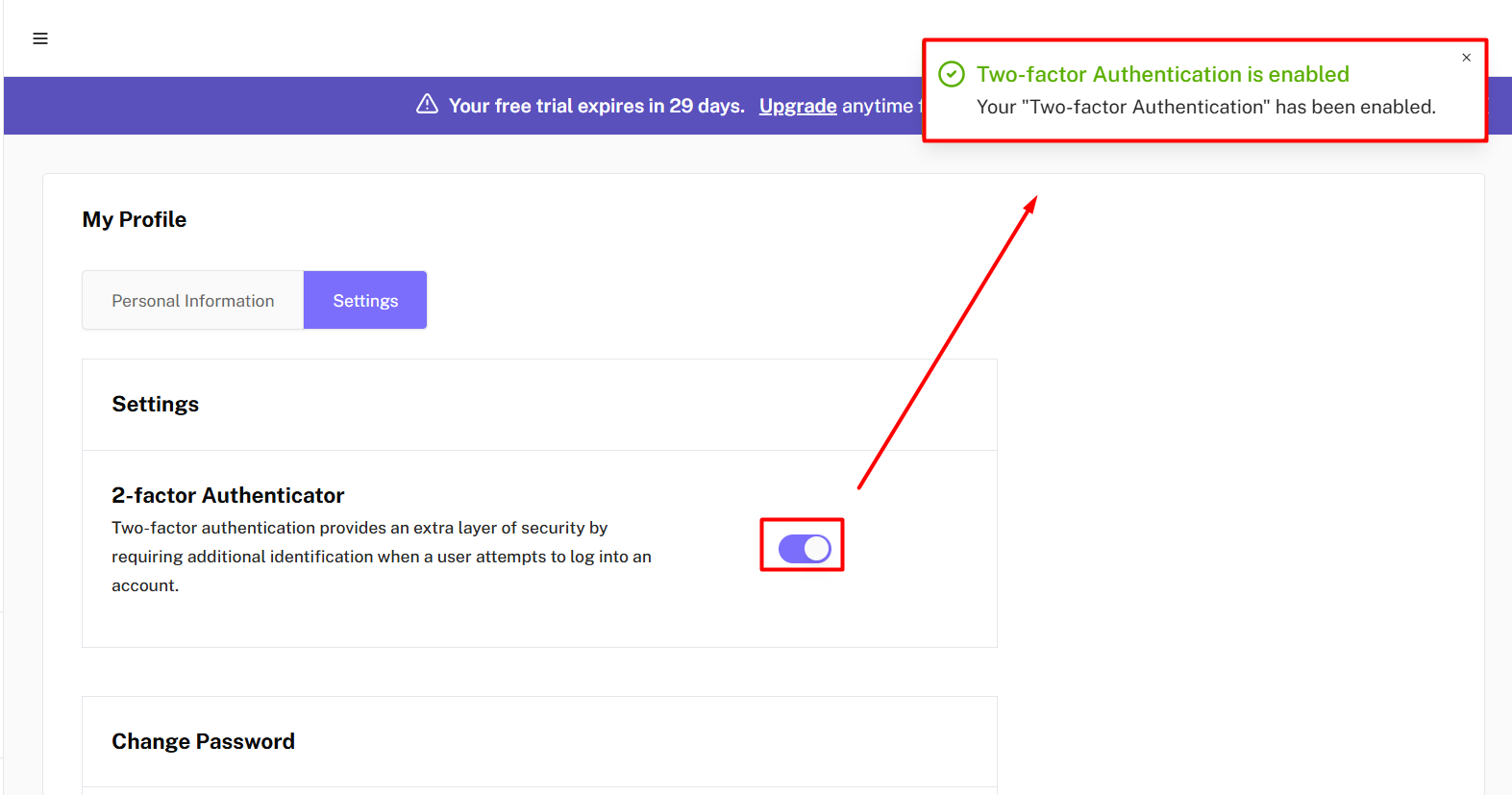
In Settings, locate the “Two-Factor Authentication (2FA)” section. → Enable the button.
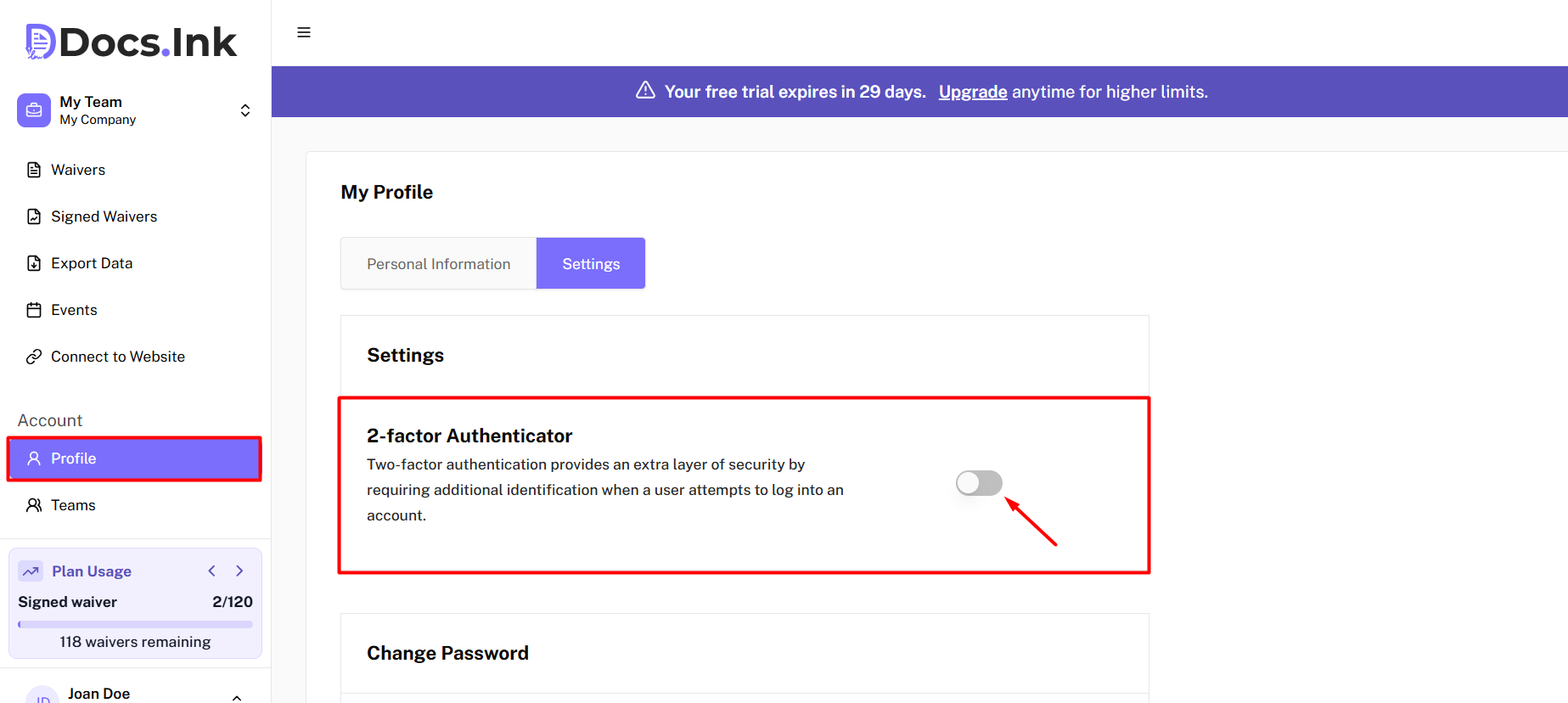
Choose Authentication Method
On enabling 2FA toggle, you will be prompted to choose your preferred authentication method:
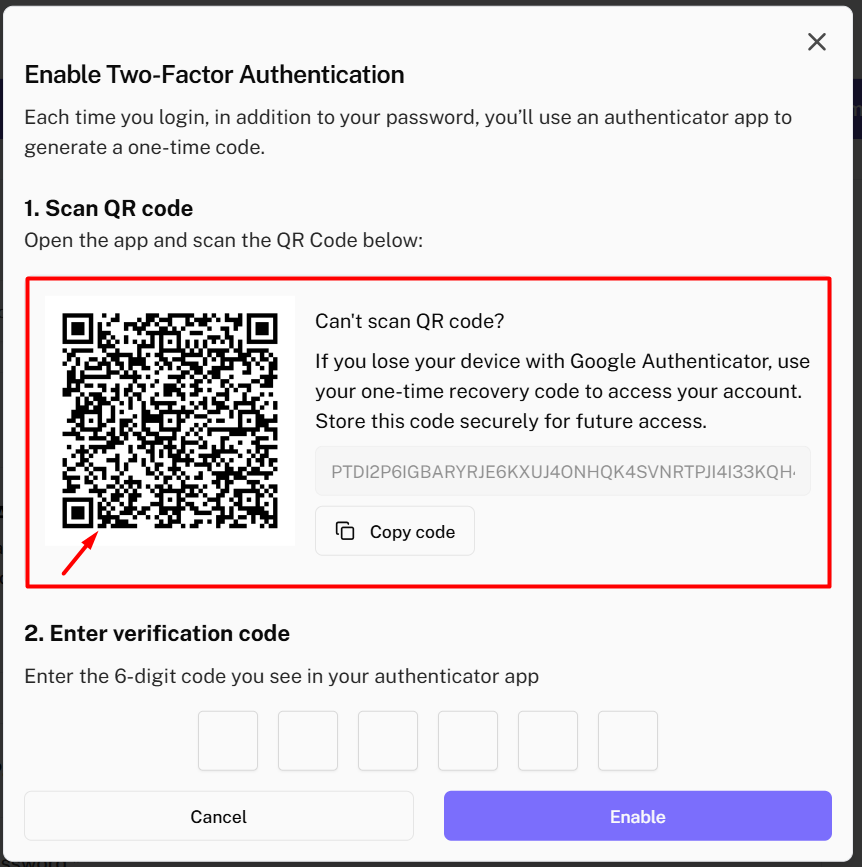
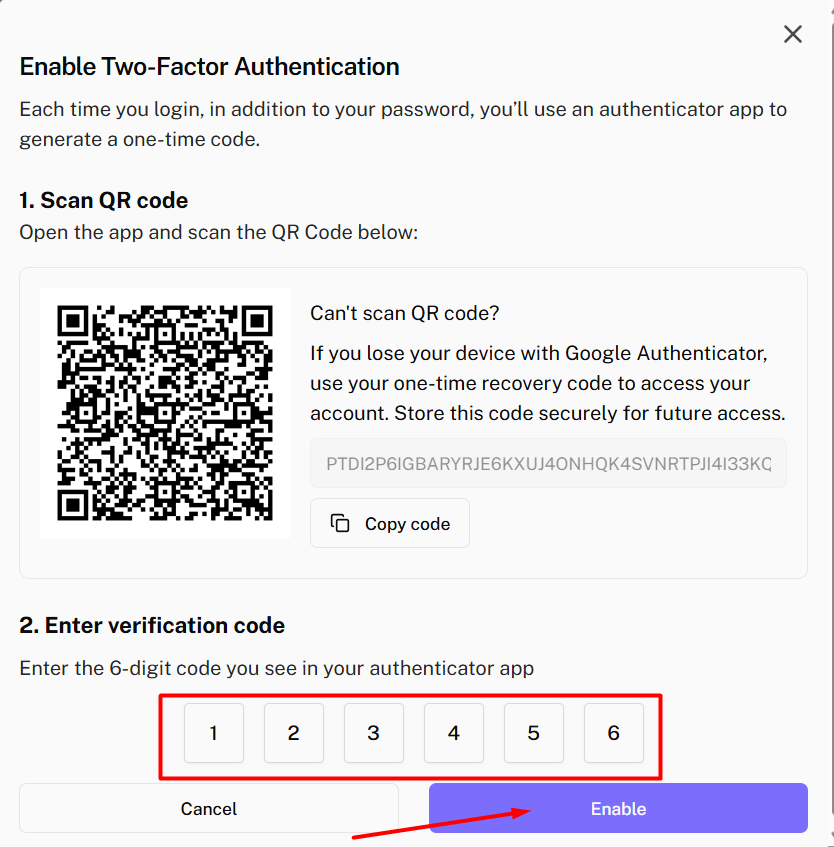
- Scan QR Code: Use Google Authenticator or Microsoft Authenticator app to Scan the QR code on your screen.
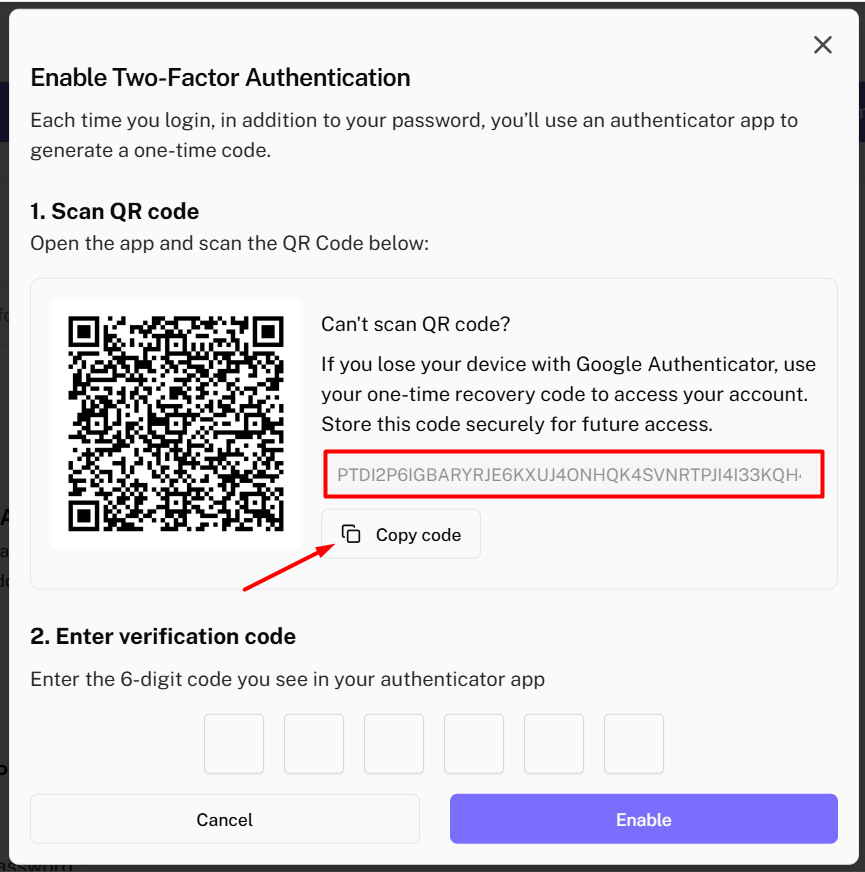
- Copy Code: Copy the provided code and manually enter it into your authentication app.
Set-up via QR code
- Open your authenticator app on your phone.
- Tap ”+” or “Add Account”.
- Scan the QR Code.
- A 6-digit verification code will appear in your app.
Set-up via Copy code
- Open authenticator app on your phone.
- Click on ”+” icon → Click Enter a setup key
- Paste the generated code in the key field of the app
- A 6-digit verification code will appear in your app.
Verify and Complete Setup
- Enter the 6-digit code from the app into Docs.Ink
- → Click “Enable”
Confirmation
A green success message will appear. 2FA is now enabled for your account.
Logging in with 2FA
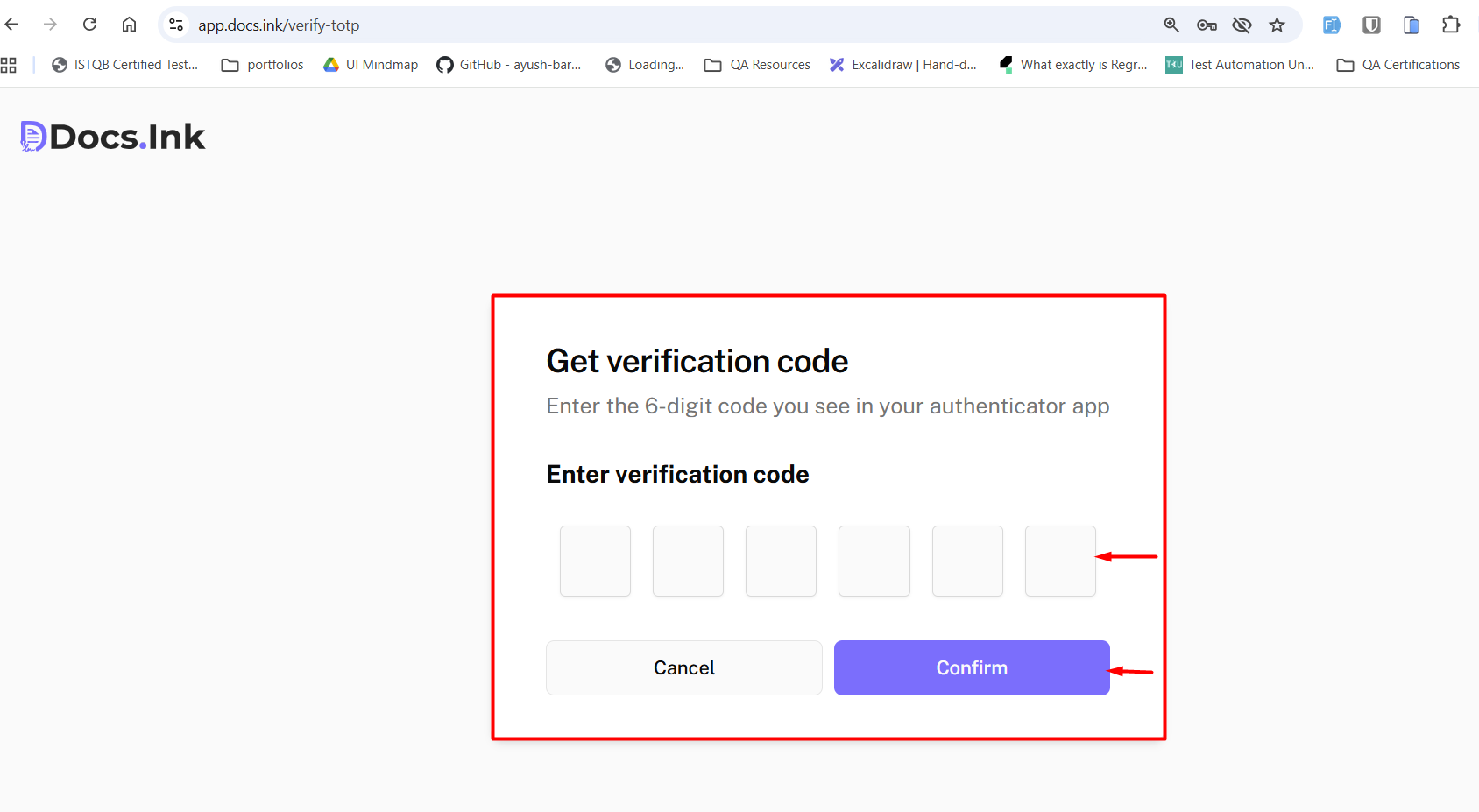
You will be prompted to enter a verification code from your authenticator app each time you log in.
Last updated on