Create Your First Waiver
Follow the steps below to create your very first waiver from Waiver Editor.
Log into Docs.ink
Open your browser and go to login page .
Enter your email address and current password. → Click Login.
Navigate to Waivers Tab from Dashboard
Go to Waivers tab from the left sidebar menu.
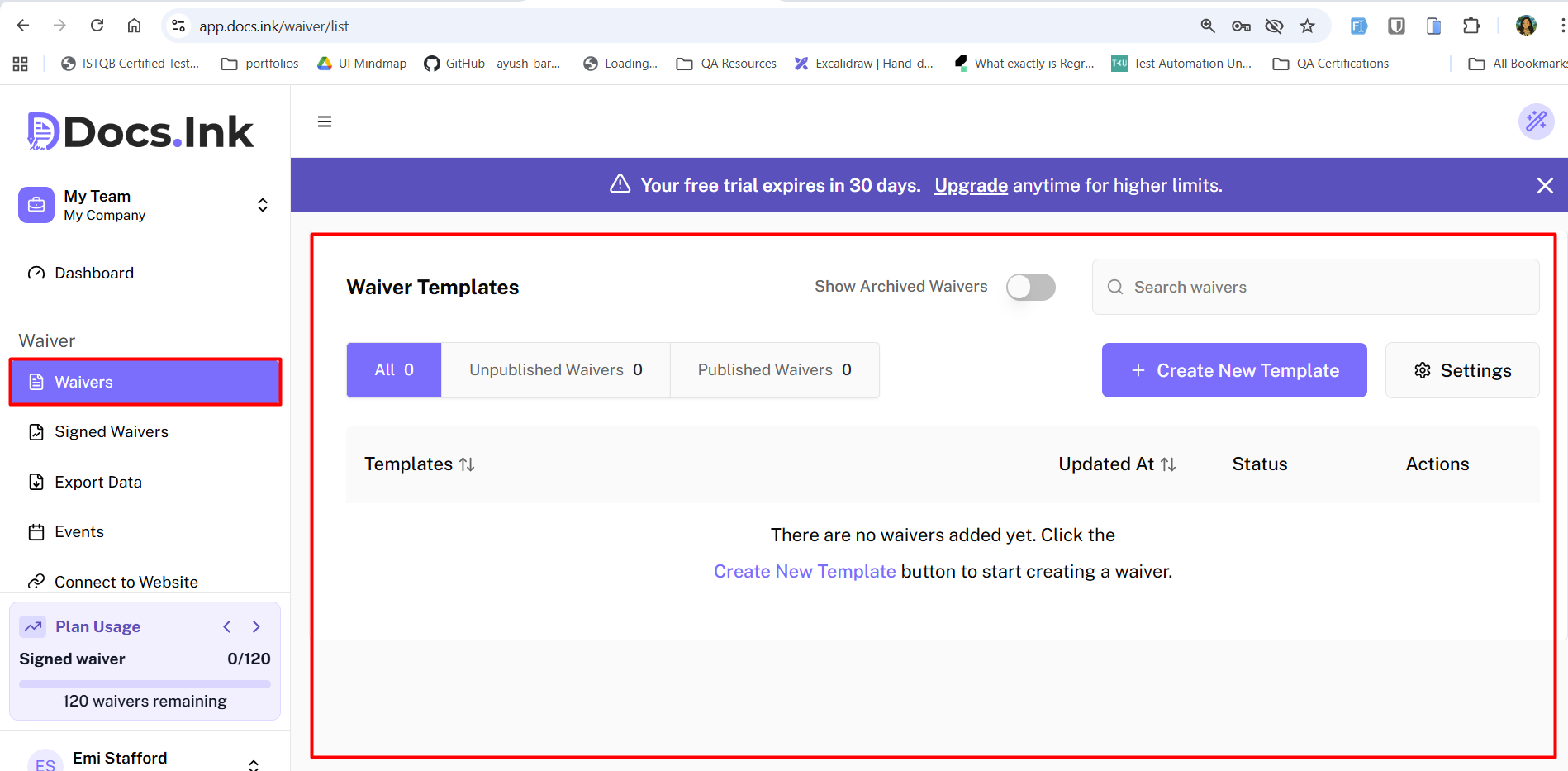
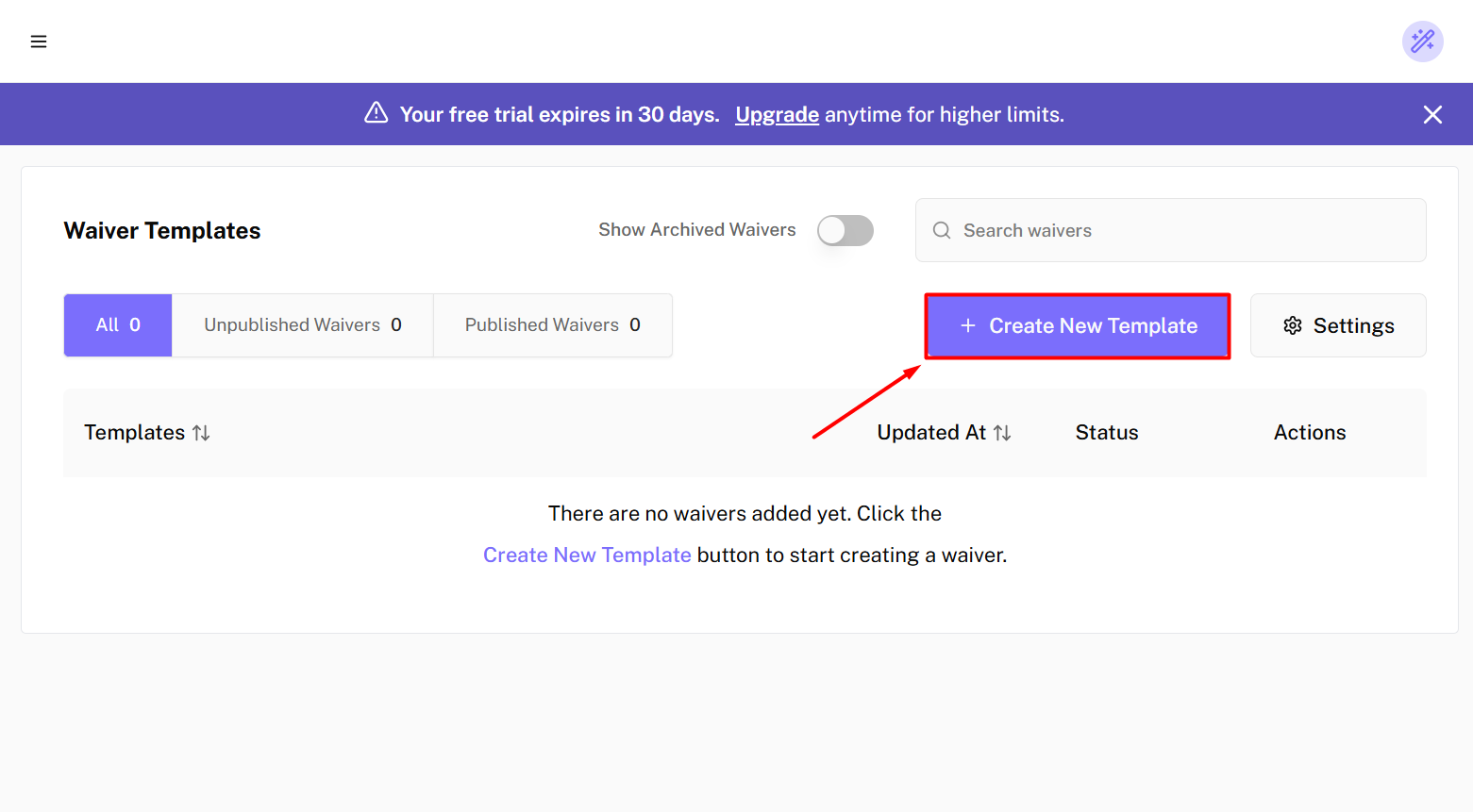
Once you’re in Waivers Tab, click on + Create New Waiver button to start creating your waiver. Read the Info on Getting Started dialog box and Click on ✓ I understand button.
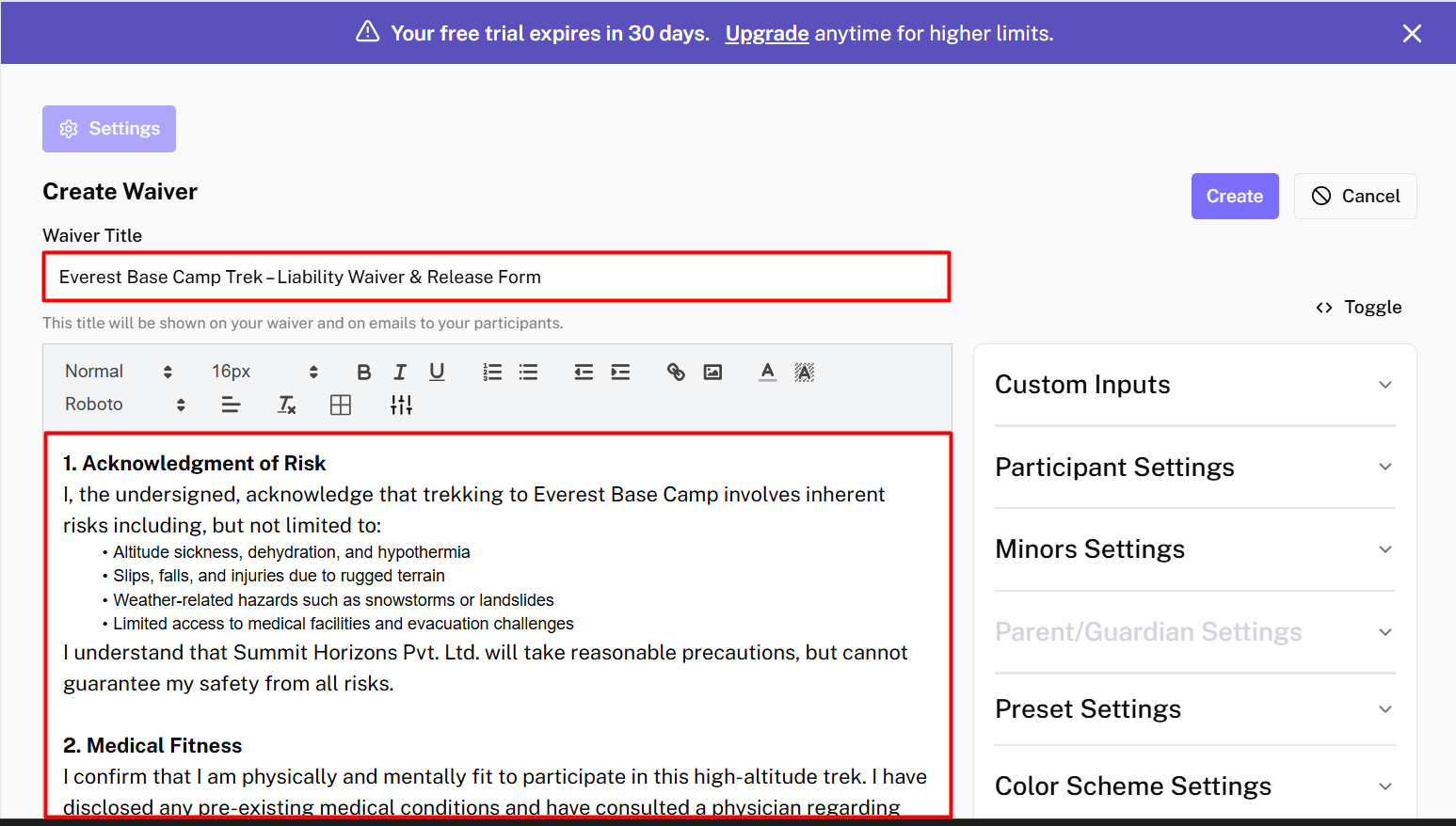
Add Waiver Title
Enter Waiver Title.
Add Waiver Content
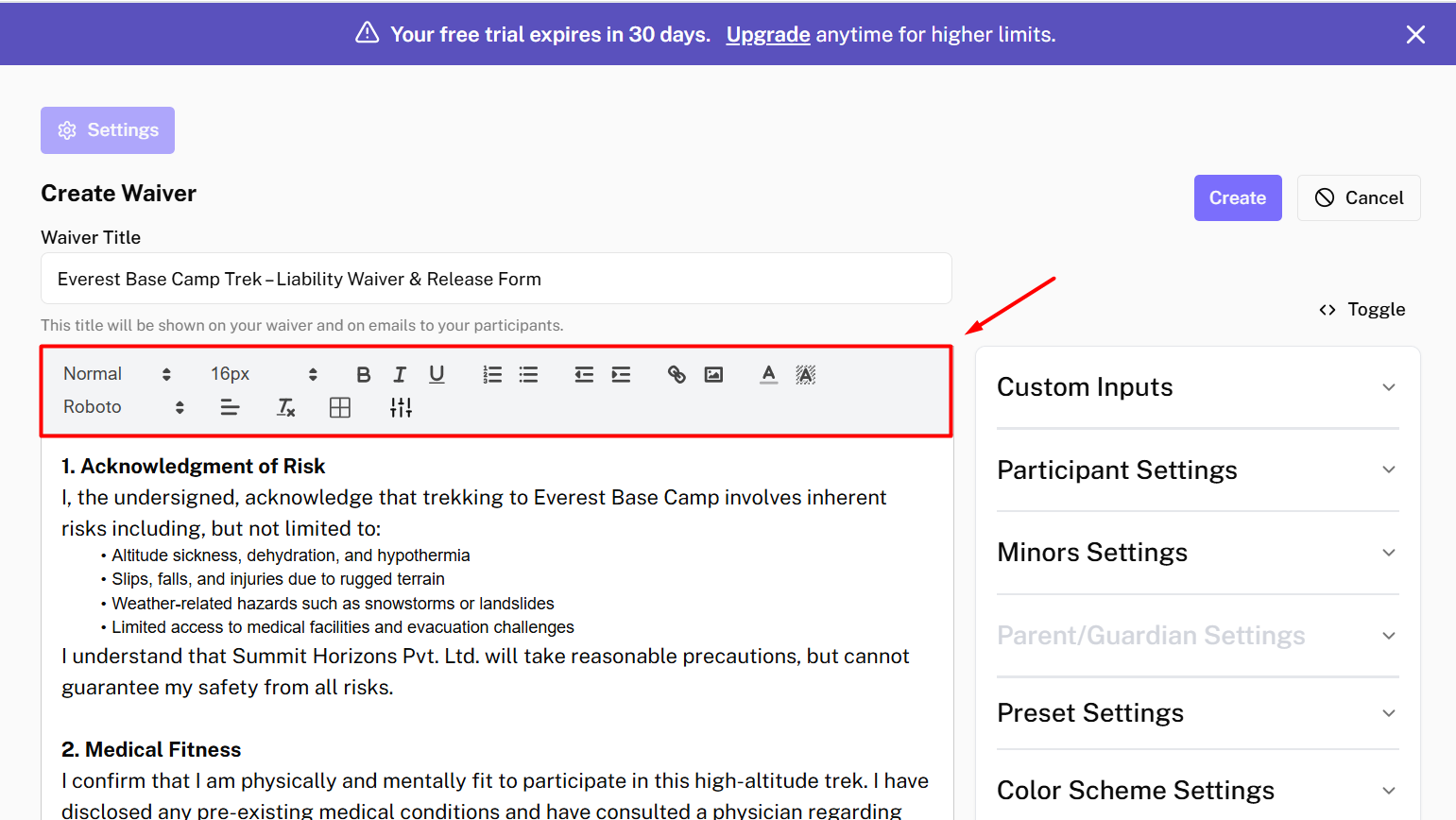
Type or paste your waiver content in the Waiver Content box. Use the formatting toolbar to format your waiver content as needed.
Edit Document Formatting by using the Toolbar
Use the formatting toolbar above the Waiver Content box to format your waiver content. You can add headings, bold/italic text, bullet points, numbered lists, hyperlinks, and more.
Add Custom Input Fields (Optional)
Click on + Add Field button to add custom input fields like Upload File, Photo, Dropdown, etc.
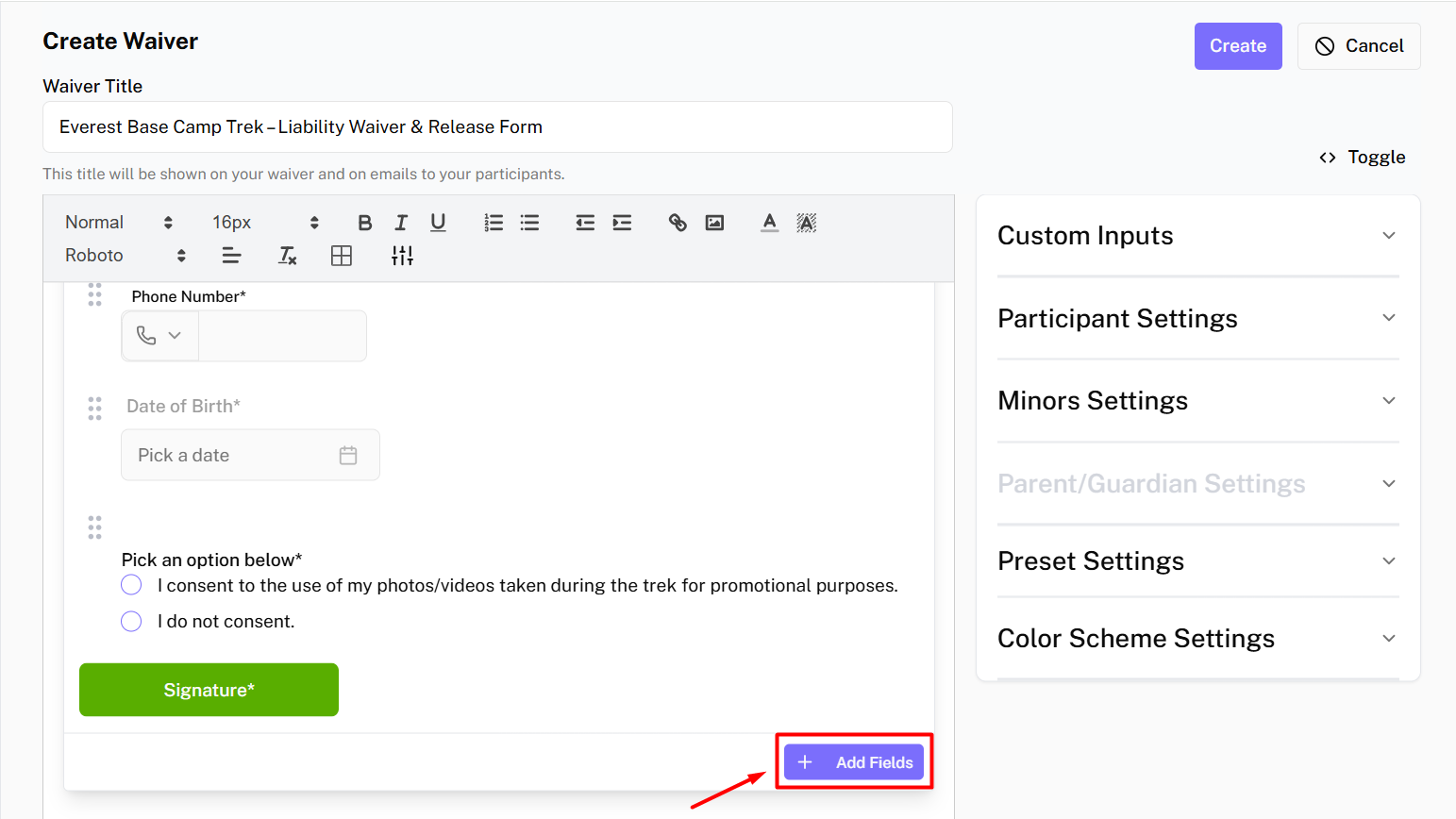
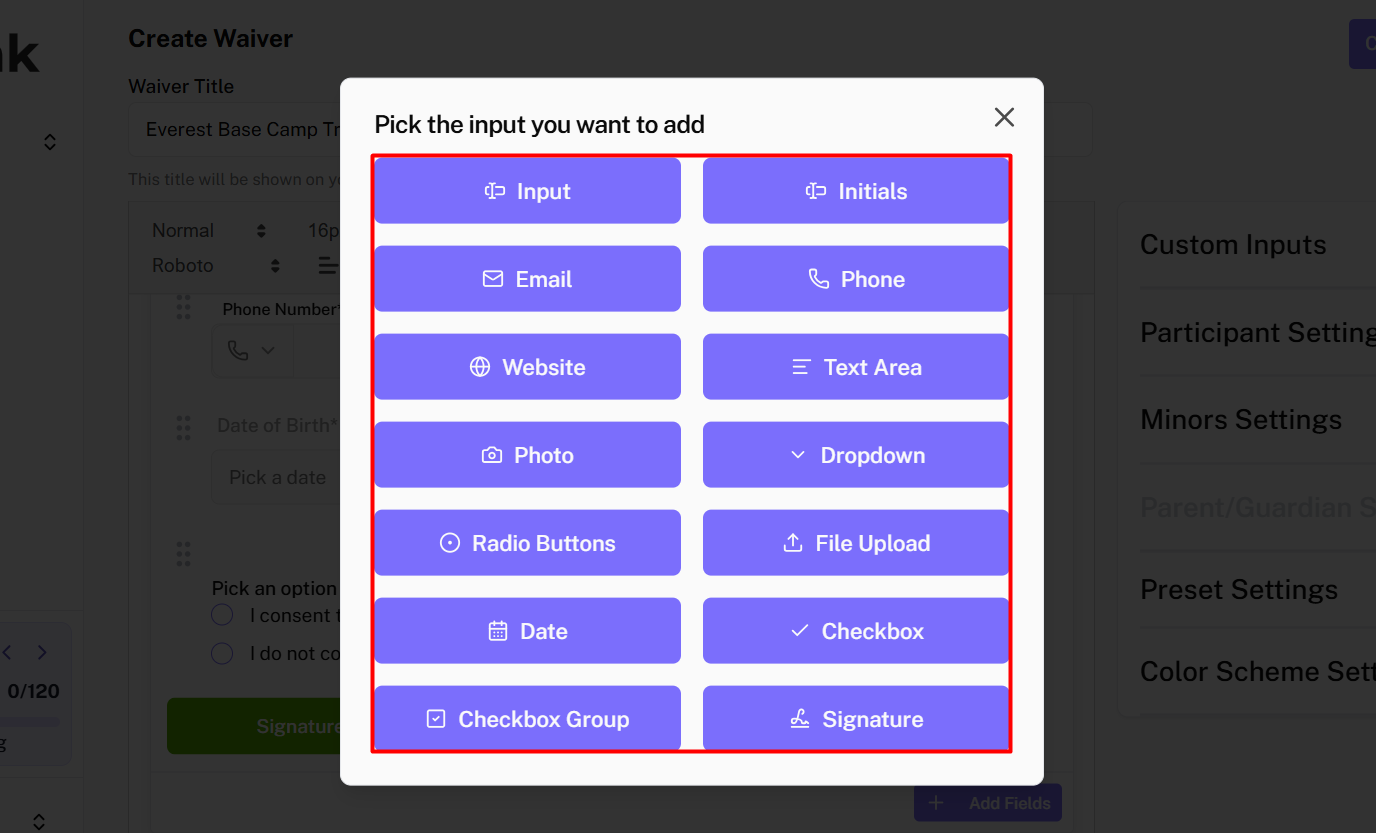
From the custom fields menu, you can select the type of field you want to add.
- 1. Input: For short text responses.
- 2. Initials: For initals.
- 3. Email: For extra email input.
- 4. Number: For phone number input.
- 5. Website: For URL input.
- 6. Textarea: For longer text responses.
- 7. Photo: For capturing photos.
- 8. Dropdown: For selecting from a list of options.
- 9. Radio Buttons: For selecting a single option from multiple choices.
- 10. File Upload: For uploading documents or images.
- 11. Date: For selecting dates.
- 12. Checkbox: For single options.
- 13. Checkbox Group: For multiple-choice options.
- 14. Signature Field: For capturing signatures.
Create Waiver
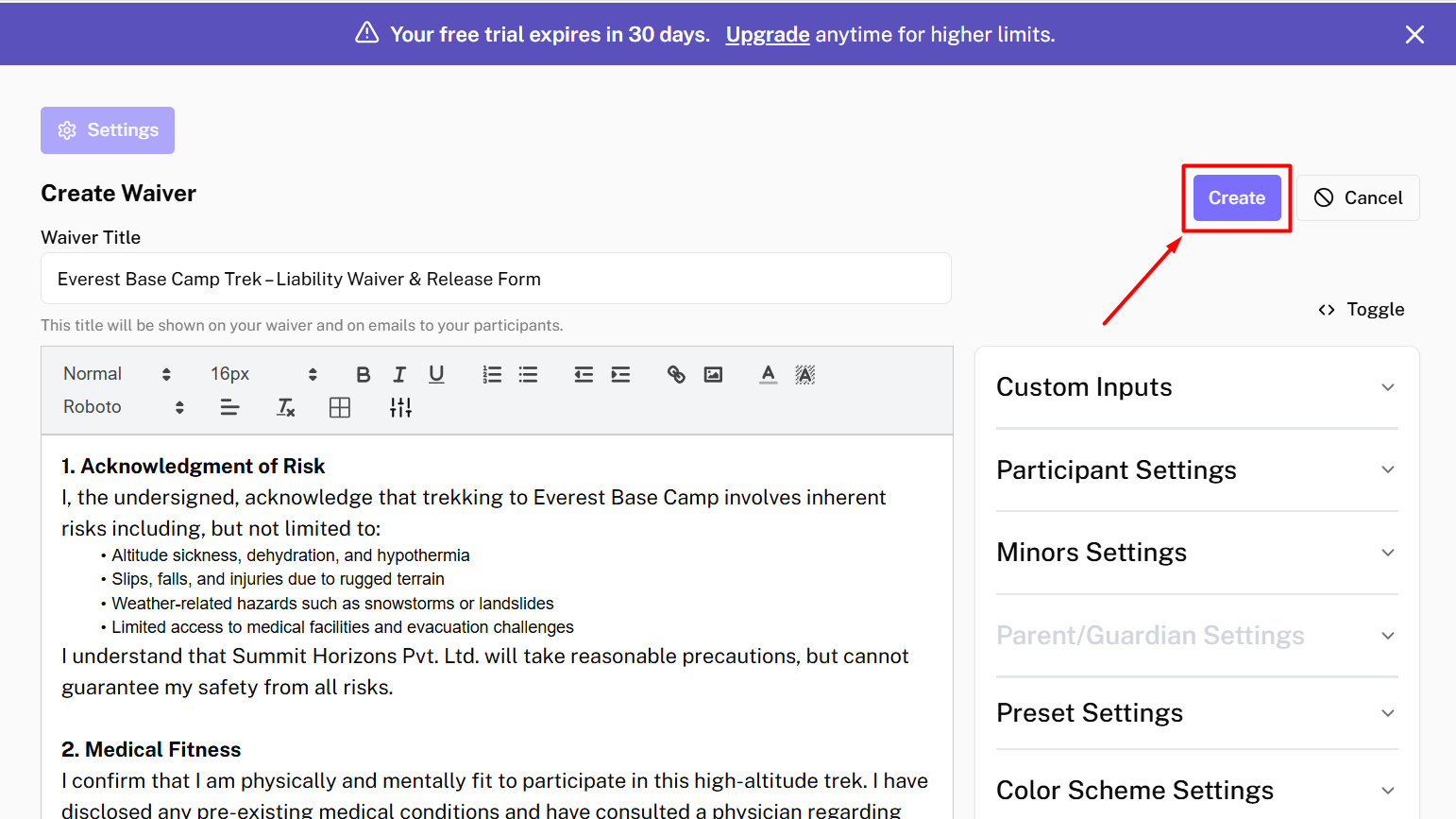
After adding all the necessary content and fields, → Click on Create button to create your waiver.
Publish Waiver
Then, → Click on Publish button to make your waiver live. Your waiver is now live and ready for signing!
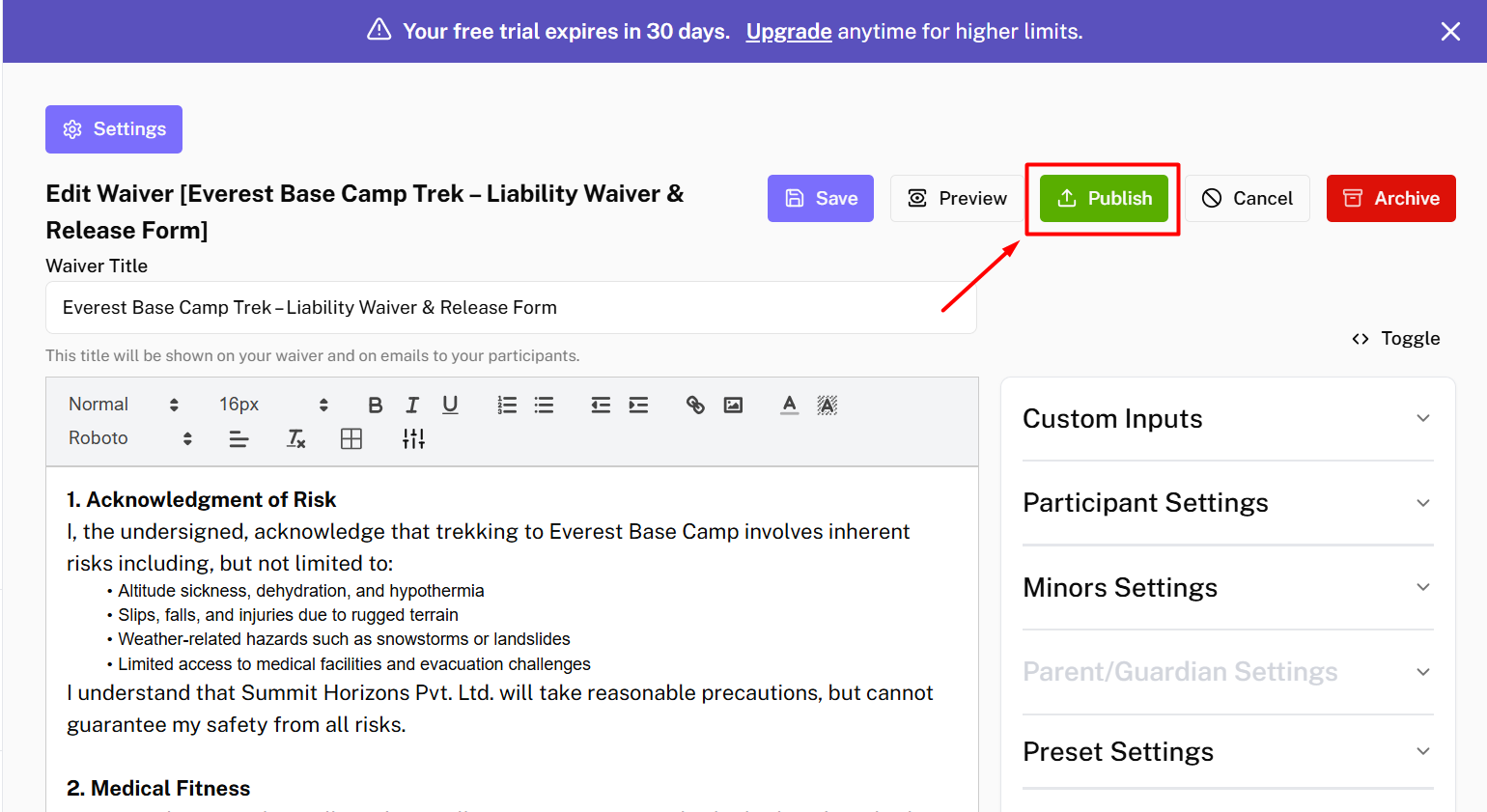
You can always edit your waiver later by navigating to the Waivers tab, selecting your waiver, and saving the changes.