Edit the waiver you already have
Docs.ink allows you to make edits & revisions to your waiver, at any time.
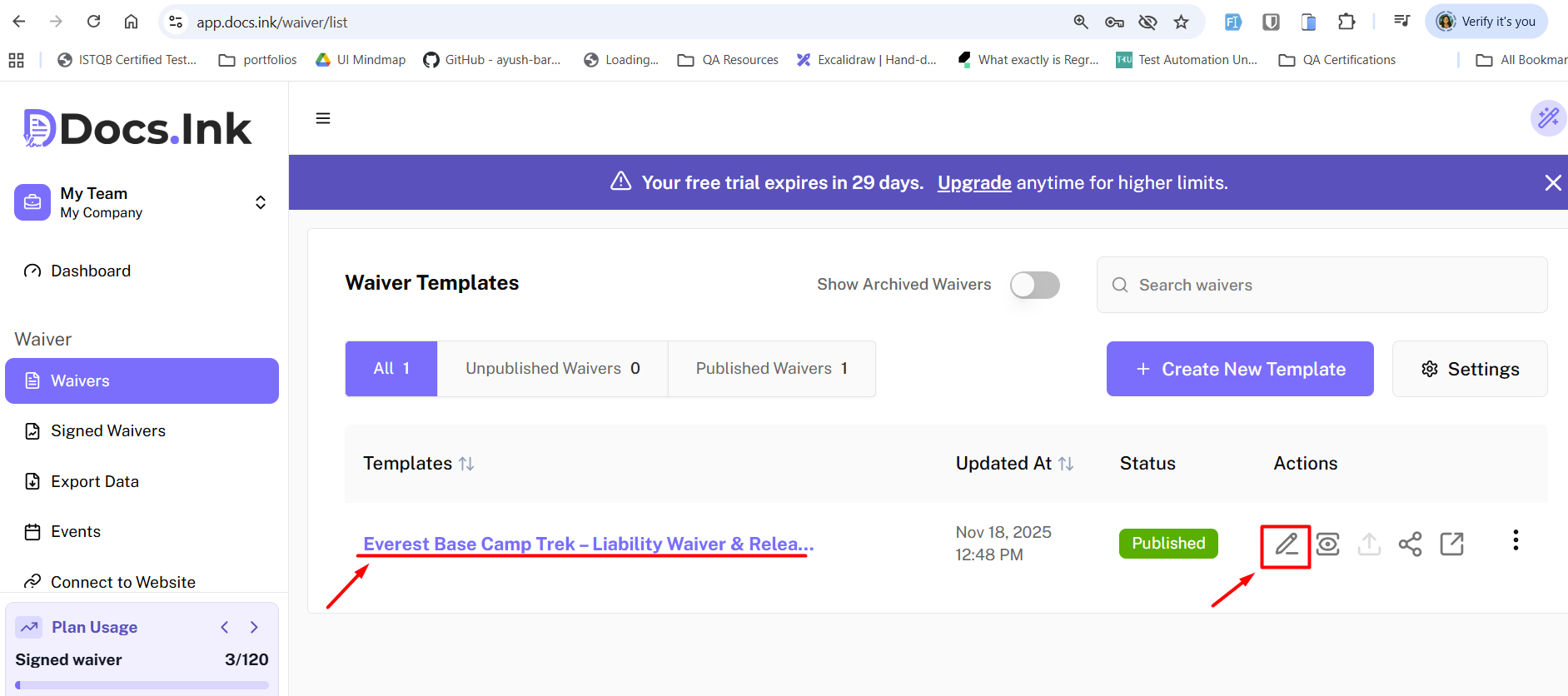
To make an edit to your existing waiver log into your Docs.Ink account and Go to:
Waiver Tab →
Once Your in the Waiver Tab
Open an existing waiver
→ Click the Edit/Pencil icon or simple → Click on the waiver title to open the waiver template you wish to edit.
You can then navigate through the right sidebar in the Waiver Editor to work on the form as needed.
Navigating through Settings in the right side panel
Here is a list of the sections you will see on the right side panel:
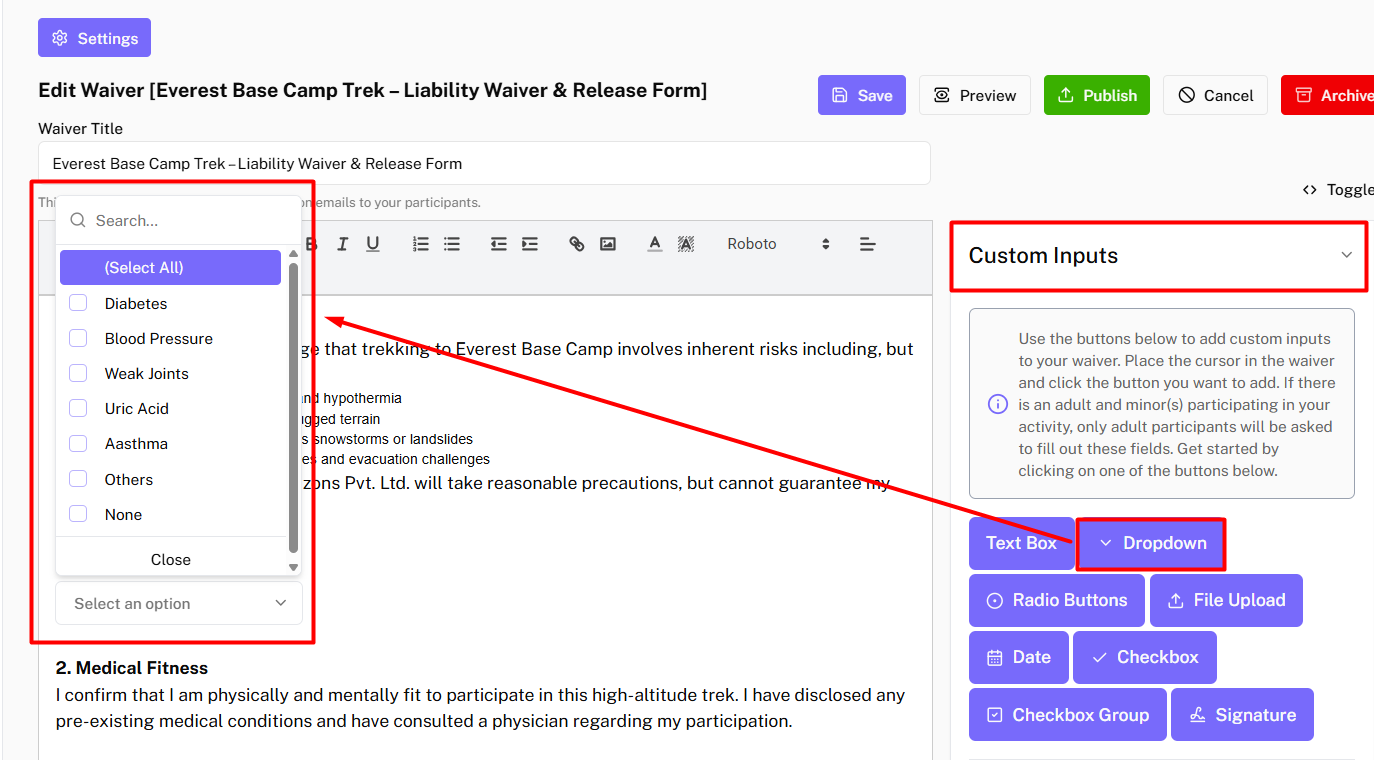
Custom Inputs
-
Custom Inputs lets you add input fields inside the waiver content section.
You can add text boxes, dropdowns, checkboxes, date pickers, and more
Participant Settings
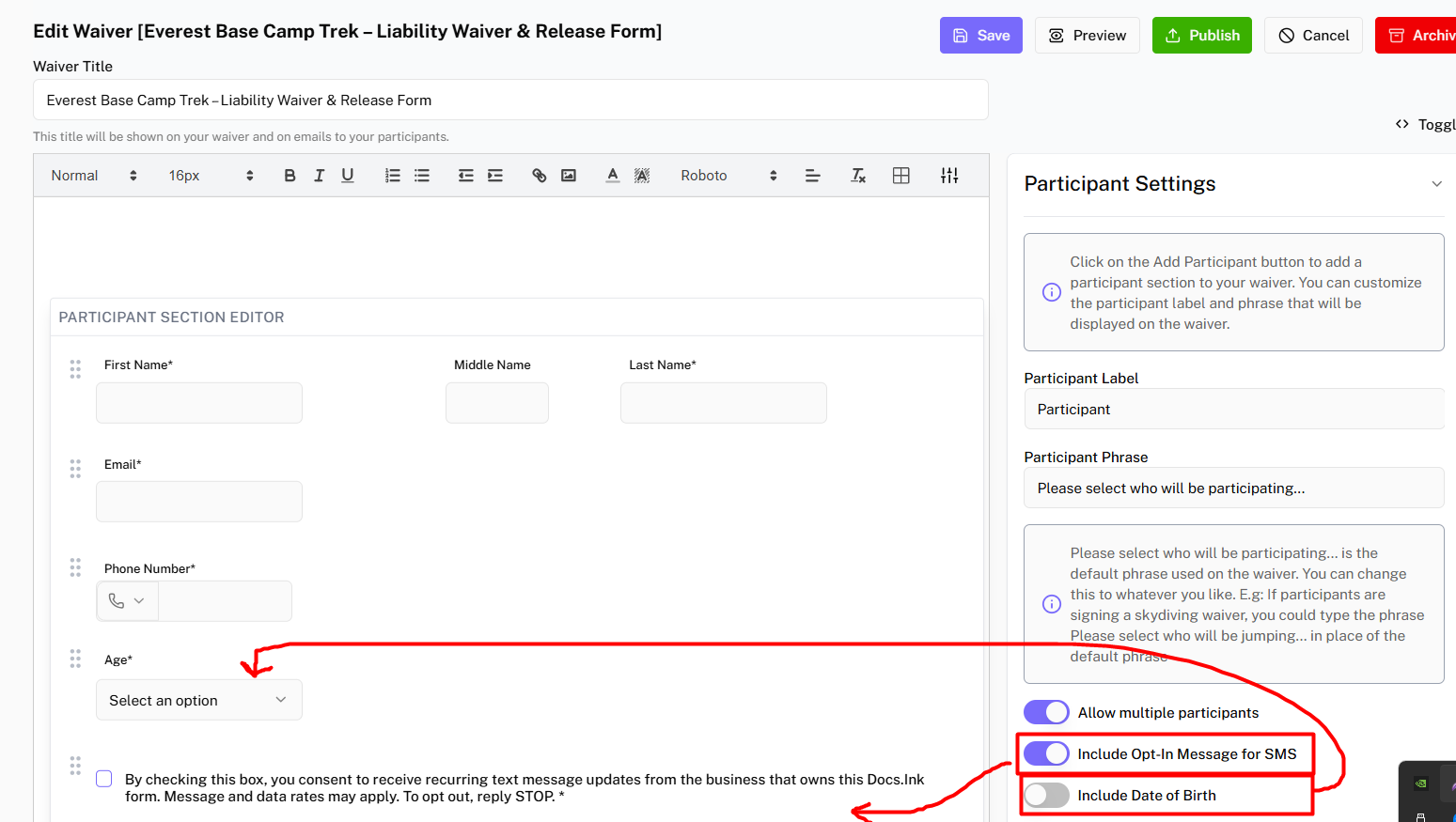
- Allows you to add Multiple Participants who need to sign the waiver.
- Lets you include a mandatory DOB field or set age-ranges for participants.
Visit participant guide for more info.
Minor Settings
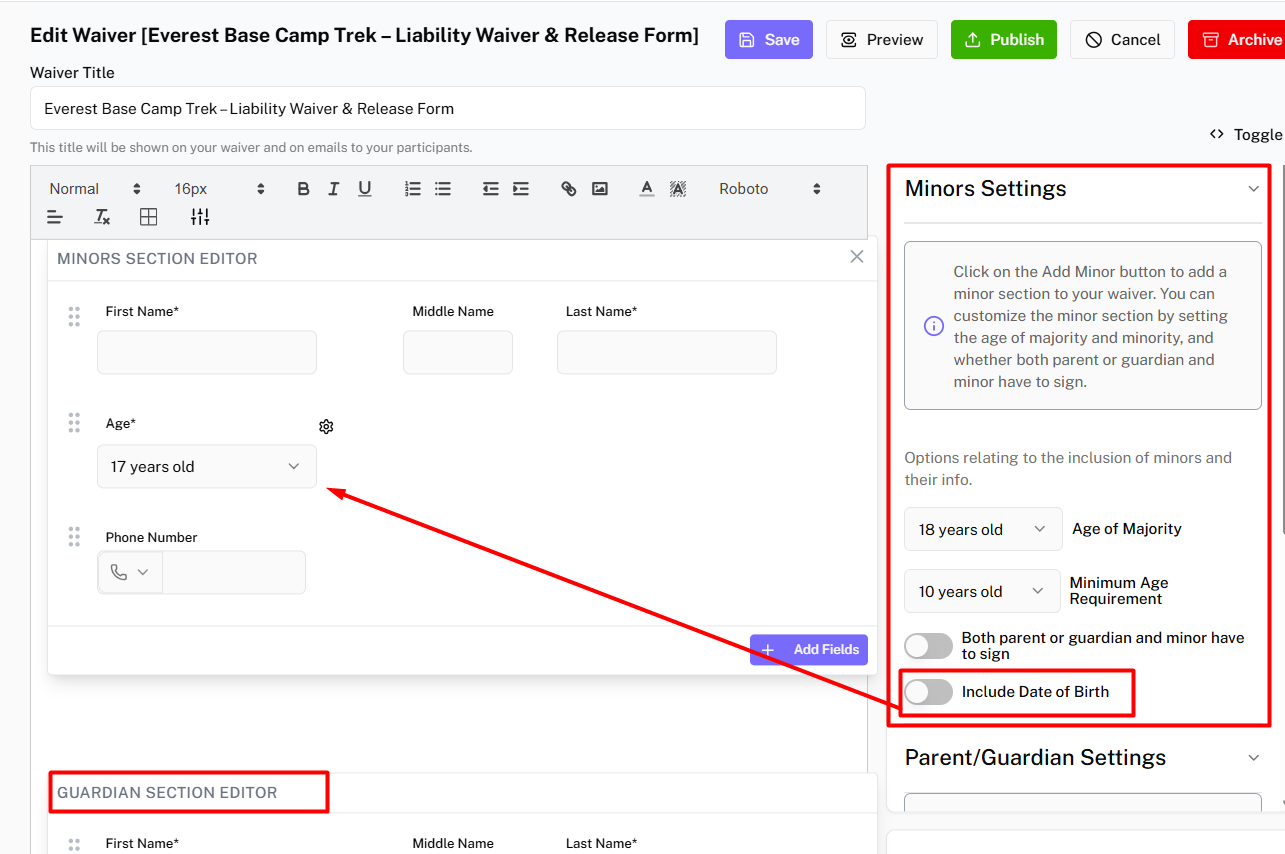
- Allows you to add Minor Participants with Guardians section to sign the waiver.
- Lets you include a mandatory DOB field or set age-ranges for participants.
Visit minor guide for more info.
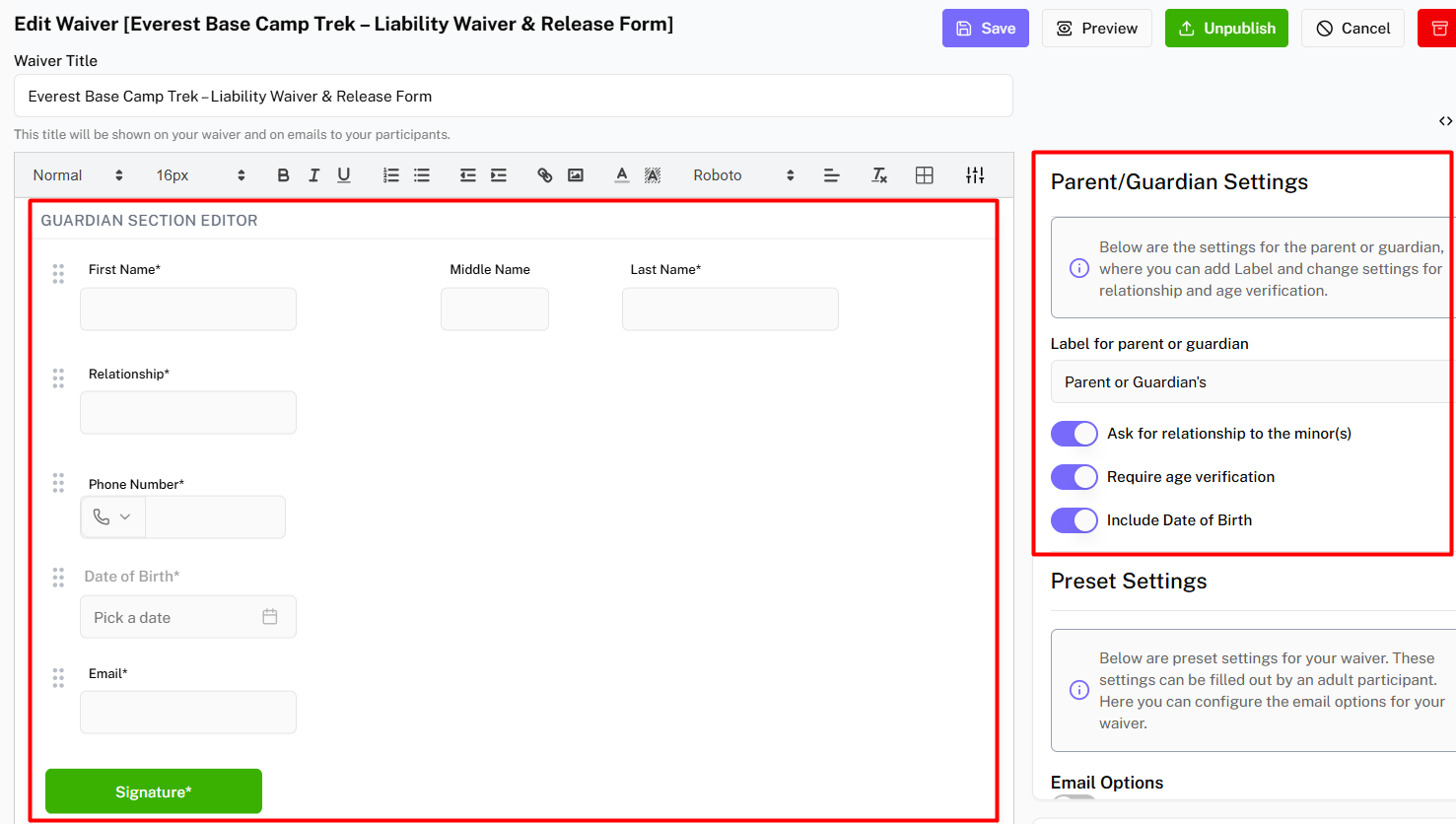
Parent/Guardian Settings
- Allows you to add Guardian’s Relationship to Minor section to waiver.
- Allows you enable/ disable Age Verification for Parent/ Guardian.
- Lets you include a mandatory DOB field or set age-ranges for Parent/Guardian.
Preset Settings
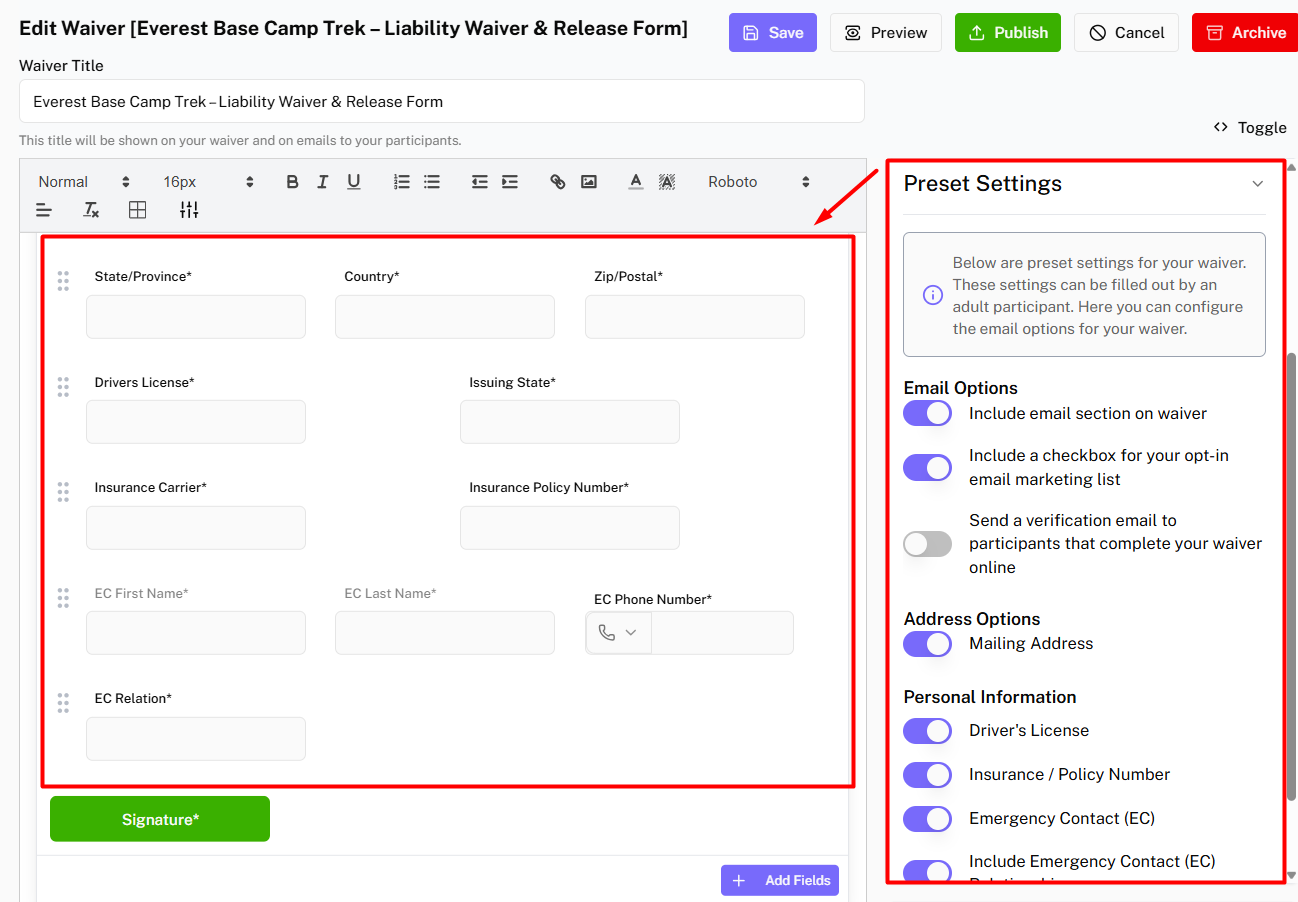
- Allows you to add Email Options in Participant and Parent/Guardian sections.
- Allows you Mailing Address in Participant and Parent/Guardian sections.
- Lets you add Driver’s License, Insurance/ Policy and Emergency Contact.
Color Schema Settings
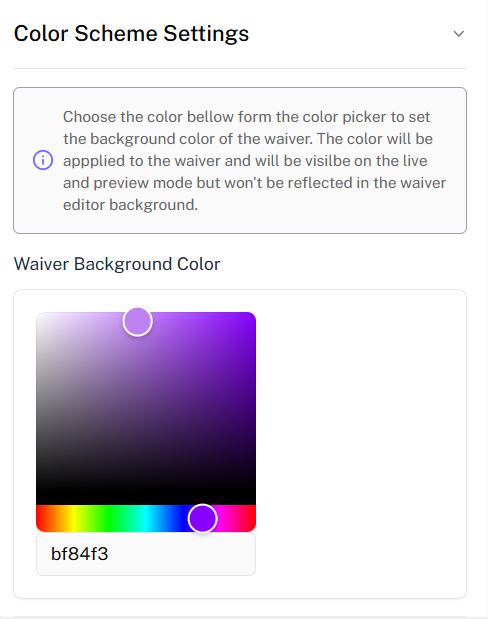
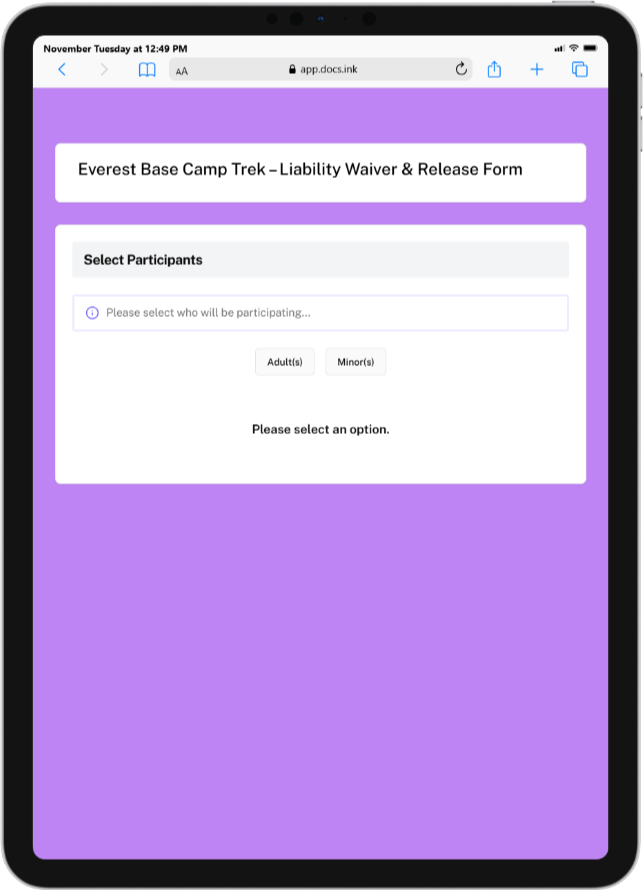
- Allows you to add background color to your Live Waiver and Preview Waiver.
Published Waiver History
- Allows you to view previous waiver versions and revert back to older version.
Need Help?
If you encounter any issues during registration, please contact our support team at support@docs.ink.
Last updated on